SAP was accused of stealing customer support documents and software
Read report at http://www.msnbc.msn.com/id/40344534/ns/business-us_business/
Wednesday, November 24, 2010

Thursday, April 22, 2010
Delivery Order: Actual Goods Movement date
To post goods issue a delivery order document (VL02N) to a specific date, enter the date in the Actual Goods Movement Date field.
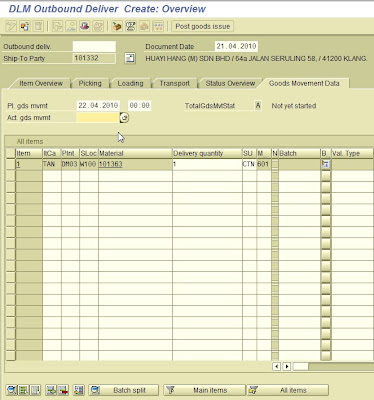
SAP Help: Actual goods movement date
You can preset the posting date for goods movement with the actual goods movement date. For example, if the posting should occur in a previous period or month, you can do so with this default.

SAP Help: Actual goods movement date
You can preset the posting date for goods movement with the actual goods movement date. For example, if the posting should occur in a previous period or month, you can do so with this default.
Monday, March 29, 2010


Monday, March 8, 2010
Maintain SAP System Message: Shipping
Transaction Code OVM1.
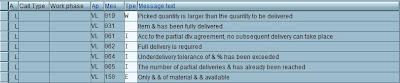
Message type - shipping processing:
. ' ' No notification
. 'I' Background: conditional log / Dialog: info message
. 'W' Background: no log / Dialog: warning
. 'E' Background: System reaction + log / Dialog: error

Message type - shipping processing:
. ' ' No notification
. 'I' Background: conditional log / Dialog: info message
. 'W' Background: no log / Dialog: warning
. 'E' Background: System reaction + log / Dialog: error
Maintain SAP System Message: Sales
Transaction Code OVAH.


System Message Category:
. ' ' No message
. 'W' Warning
. 'E' Error message


System Message Category:
. ' ' No message
. 'W' Warning
. 'E' Error message
Friday, January 15, 2010
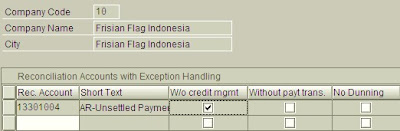
Define Reconciliation Accounts Without Credit Management Update
Define Reconciliation Accounts Without Credit Management Update
Source SAP HELP
In this IMG activity, you can cancel the credit management update function for certain postings by posting to an additional reconciliation account; the reconciliation account without credit management update.
When you make postings to the standard reconciliation account, the receivables total within credit management is then updated, but those postings made to the reconciliation account without credit management update are not.
SPRO Menu: Financial Accounting > Accounts Receivable and Accounts Payable > Credit Management > Define Reconciliation Accts Without Credit Management Update
Transaction code AKOF
Source SAP HELP
In this IMG activity, you can cancel the credit management update function for certain postings by posting to an additional reconciliation account; the reconciliation account without credit management update.
When you make postings to the standard reconciliation account, the receivables total within credit management is then updated, but those postings made to the reconciliation account without credit management update are not.
SPRO Menu: Financial Accounting > Accounts Receivable and Accounts Payable > Credit Management > Define Reconciliation Accts Without Credit Management Update
Transaction code AKOF

Wednesday, October 7, 2009
Check for deleted documents in SAP

Wednesday, August 5, 2009
Cost Center Field In Sales Order Transaction VA01
Assign Cost Center by sales order reason
. Transaction: OVF3 Assign Cost Centers
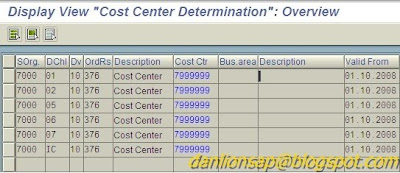
If the Order Type's SD document category (VOV8) is set to "I" (Order w/o charge), than the Cost Center field in the Sales Order (VA01) will be active.
. Transaction VOV8 Sales Document Type
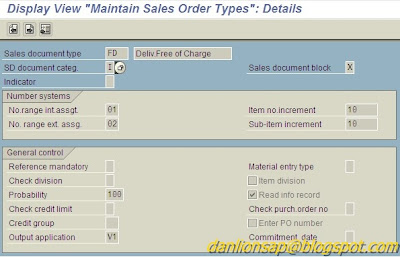
. Transaction: OVF3 Assign Cost Centers

If the Order Type's SD document category (VOV8) is set to "I" (Order w/o charge), than the Cost Center field in the Sales Order (VA01) will be active.
. Transaction VOV8 Sales Document Type

Friday, December 12, 2008
Duplicate Purchase Order Number (VBAK-BSTNK) in Sales Order
Same Purchase Order number (VBAK-BSTNK) in Sales Order
The Sales order type xxx "Check purchase order number" is set to "A" (TVAK-PRBST) (Check whether the purchase order number already exists).

Screen: SPRO Sales order type
SCENARIO:
. Open two sessions
. Create sales Order 1 and sales order 2 with the same Purchase Order number at the same time.
. Do not save both orders until both are completed.
. Save order 1 and than save order 2.
. No message "Purchase order number in document & already exists"
SOLUTION:
As long as the document is not saved in database, the R/3 system does not know that the purchase order number already exists.
In SD, there is no buffer table where the temporary purchase order number is stored, in order to check if one already exist. This would impact system performance. As a result, the scenario above is R/3`s standard system behavior.
NOTE:
The standard SAP system behaviour in checking purchase order number:
Case 1:
Create two orders with the same order type, the same sold-to and the same purchase order number.
-> Message V4 115 "Purchase order number in document & already exists" appears
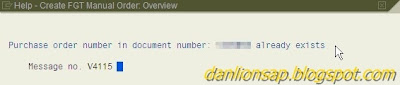
Screen: Sales order message V4 115
Case 2:
Create two orders with different sold-to parties, same order type and same purchase order number.
-> No message V4 115.
Case 3:
Create two orders with different order types, same sold-to and same purchase order number.
-> No message V4 115.
The check purchase order number is validated via the following selection criteria:
. Customer Number
. Sales Order Type
Reference Program Code:
. SAPFV45K
. FV45KF0V_VBKD-BSTKD_PRUEFEN
The Sales order type xxx "Check purchase order number" is set to "A" (TVAK-PRBST) (Check whether the purchase order number already exists).

Screen: SPRO Sales order type
SCENARIO:
. Open two sessions
. Create sales Order 1 and sales order 2 with the same Purchase Order number at the same time.
. Do not save both orders until both are completed.
. Save order 1 and than save order 2.
. No message "Purchase order number in document & already exists"
SOLUTION:
As long as the document is not saved in database, the R/3 system does not know that the purchase order number already exists.
In SD, there is no buffer table where the temporary purchase order number is stored, in order to check if one already exist. This would impact system performance. As a result, the scenario above is R/3`s standard system behavior.
NOTE:
The standard SAP system behaviour in checking purchase order number:
Case 1:
Create two orders with the same order type, the same sold-to and the same purchase order number.
-> Message V4 115 "Purchase order number in document & already exists" appears

Screen: Sales order message V4 115
Case 2:
Create two orders with different sold-to parties, same order type and same purchase order number.
-> No message V4 115.
Case 3:
Create two orders with different order types, same sold-to and same purchase order number.
-> No message V4 115.
The check purchase order number is validated via the following selection criteria:
. Customer Number
. Sales Order Type
Reference Program Code:
. SAPFV45K
. FV45KF0V_VBKD-BSTKD_PRUEFEN
Forwarding Agent not displayed in General Delivery List, transaction code VL06O
Forwarding Agent not displayed in General Delivery List, in transaction code VL06O (General Delivery List).
Note that for performance reasons mainly, the forwarding agent information is not usually read from the database when launching transaction VL06O.
SOLUTION:
In order to have the information read and displayed in the subsequent list, from the initial screen, check the "Display forwarding agent flag" that appears within the "Display options" section of the selection screen.

Screen: Transaction VL06O
Note that for performance reasons mainly, the forwarding agent information is not usually read from the database when launching transaction VL06O.
SOLUTION:
In order to have the information read and displayed in the subsequent list, from the initial screen, check the "Display forwarding agent flag" that appears within the "Display options" section of the selection screen.

Screen: Transaction VL06O
Order Confirmed Quantity Not Updated After Credit Release Via VKM3
After credit release of a blocked order using VKM3 , the confirmed quantity in the sales order is not updated, i.e. no automatic ATP after releasing.
Transaction code OVZJ - Sales area: Default Values for Availability Check.
. Check field "Rule for transferring the results of the availability check"

Screen: Transaction OVZJ

Screen: Rule for transferring the results of the availability check
If the availability checking rule is blank, when the system performs the availability check during credit release, the system will choose full delivery. If the quantity required cannot be confirmed fully the system will confirm zero.
In the standard system when a credit block occurs, the confirmed quantities are set to zero.

Screen: During sales order Availability check, confirmed quantity zero.
After the sales order is released from credit, another availability check takes place in the background.
While this takes place in the background, the availability screen cannot be displayed, hence the system uses the availability check rule defined (via OVZJ) for the organization data to determine whether to choose delivery proposal, one-time delivery or full delivery.
SOLUTION:
Maintain field "Rule for transferring the results of the availability check" in transaction OVZJ.
Transaction code OVZJ - Sales area: Default Values for Availability Check.
. Check field "Rule for transferring the results of the availability check"

Screen: Transaction OVZJ

Screen: Rule for transferring the results of the availability check
If the availability checking rule is blank, when the system performs the availability check during credit release, the system will choose full delivery. If the quantity required cannot be confirmed fully the system will confirm zero.
In the standard system when a credit block occurs, the confirmed quantities are set to zero.

Screen: During sales order Availability check, confirmed quantity zero.
After the sales order is released from credit, another availability check takes place in the background.
While this takes place in the background, the availability screen cannot be displayed, hence the system uses the availability check rule defined (via OVZJ) for the organization data to determine whether to choose delivery proposal, one-time delivery or full delivery.
SOLUTION:
Maintain field "Rule for transferring the results of the availability check" in transaction OVZJ.
Transaction Code OVM1
Transaction OVM1 (Controllable Error Messages Shipping Processing)
. Change warning message to an error message or vice versa.
. Only for application area L (Shipping)
Category:
. - No notification
. I - Background: conditional log / Dialog: info message
. W - Background: no log / Dialog: warning
. E - Background: System reaction + log / Dialog: error
. Change warning message to an error message or vice versa.
. Only for application area L (Shipping)
Category:
.
. I - Background: conditional log / Dialog: info message
. W - Background: no log / Dialog: warning
. E - Background: System reaction + log / Dialog: error
Transaction Code OVAH
Transaction code OVAH (System Message)
. Change a warning message to an error message or vice versa.
. Only for application area V4 (Sales)
Category:
. - No message
. W - Warning
. E - Error message
. Change a warning message to an error message or vice versa.
. Only for application area V4 (Sales)
Category:
.
. W - Warning
. E - Error message
Recommended Book: Implementing SAP R/3 Sales and Distribution
 Book title:
Implementing SAP R/3 Sales and Distribution (Paperback)
Author:
Glynn C. Williams
Good book if you want to to understand SD module as well as learn some relevant SD configurations.
Read some reviews in Amazon.com.
No document found via transaction code J1A6
No document found via transaction code J1A6
. System message - "No documents found" message number 8A802.
. Transaction code J1A6 - Display and Change Official Document Number (FI/SD)
Processing logic of transaction J1A6:
. Only the official document numbering of self-issued documents
. Relevant for official numberings can be displayed and changed
SOLUTION:
Maintain the document type relevant for official document numbering via
. Transaction SM30 for table V_T003_B_I for your country and document type.
. System message - "No documents found" message number 8A802.
. Transaction code J1A6 - Display and Change Official Document Number (FI/SD)
Processing logic of transaction J1A6:
. Only the official document numbering of self-issued documents
. Relevant for official numberings can be displayed and changed
SOLUTION:
Maintain the document type relevant for official document numbering via
. Transaction SM30 for table V_T003_B_I for your country and document type.
Wednesday, December 10, 2008
Display Technical Name In Easy Access Menu
Menu without technical name (transaction code)
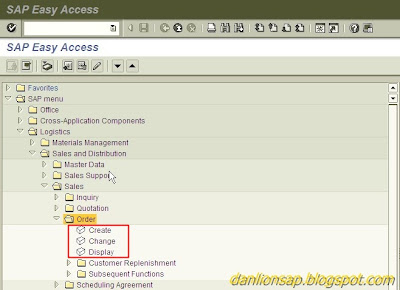
Screen: SAP Easy Access
Choose Extras > Settings.
. Click the "Display technical names" checkbox
. Click Enter to continue
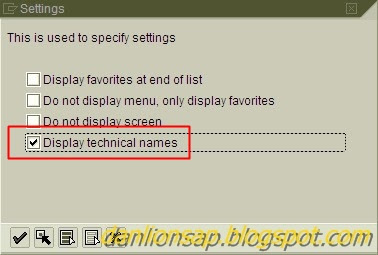
Screen: Settings
The technical name (transaction code) will be displayed
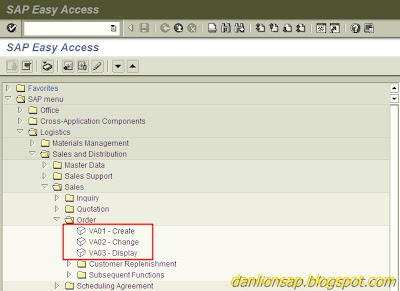
Screen: SAP Easy Access with technical names displayed

Screen: SAP Easy Access
Choose Extras > Settings.
. Click the "Display technical names" checkbox
. Click Enter to continue

Screen: Settings
The technical name (transaction code) will be displayed

Screen: SAP Easy Access with technical names displayed
Transaction Code search_sap_menu
A quick way to check the menu patch for a transaction code .
Transaction code search_sap_menu
. Key in the transaction code and press Enter

Screen: search_sap_menu
Example of the menu path for transaction VA01:
Logistics > Sales and Distribution > Sales > Order > Create

Screen: Search for a transaction code or menu title
Transaction code search_sap_menu
. Key in the transaction code and press Enter

Screen: search_sap_menu
Example of the menu path for transaction VA01:
Logistics > Sales and Distribution > Sales > Order > Create

Screen: Search for a transaction code or menu title
Subscribe to:
Posts (Atom)


